SaaS launch announcement email: examples and template
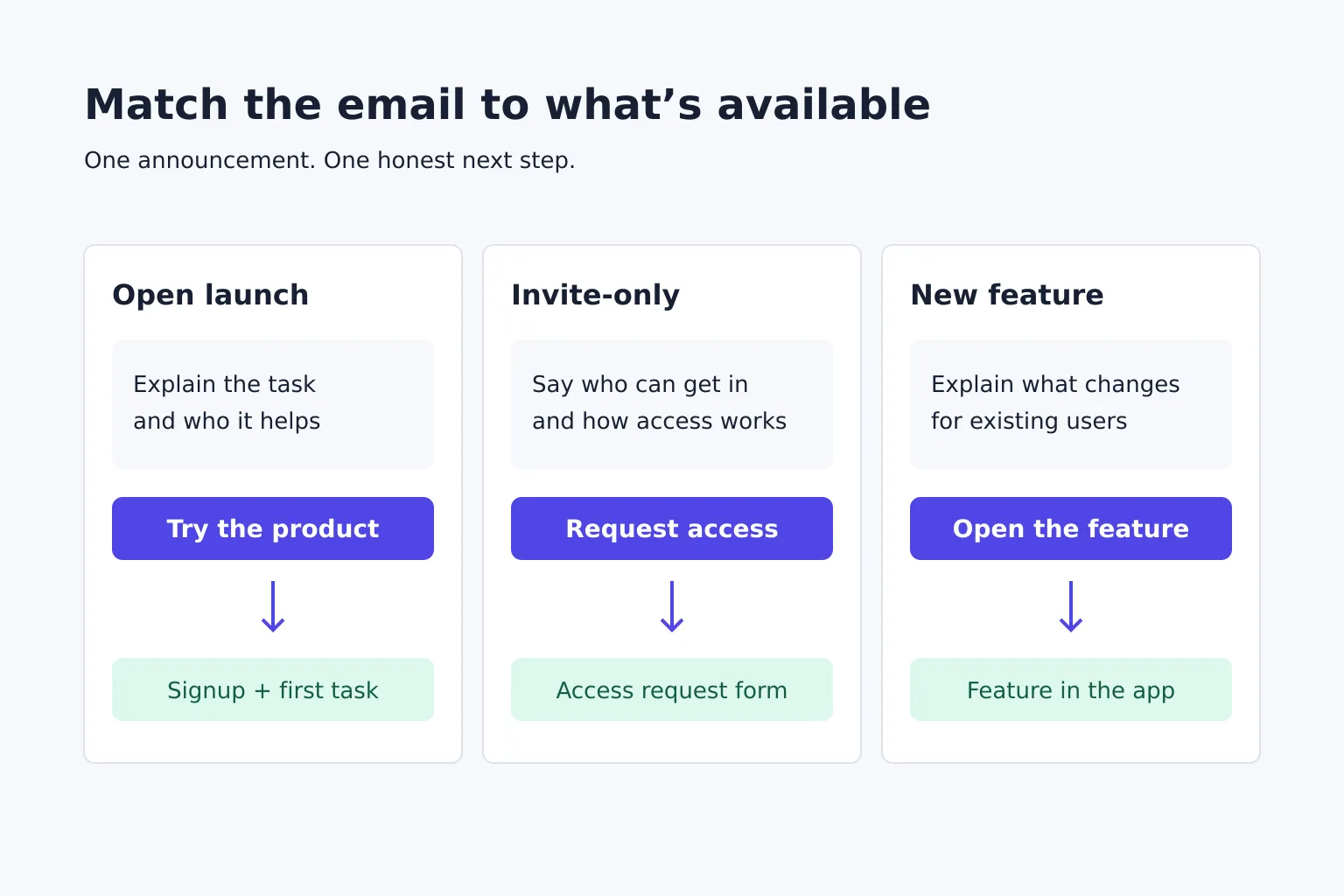
A SaaS launch announcement email should tell readers what the product does, who can use it now and the one action to take next. Use a concrete subject line, a short explanation of the task it helps with, and a link that matches the access you promise. An open launch, an invite-only release and a feature update need different invitations.
What belongs in a SaaS launch announcement email?
A launch announcement introduces newly available software to people who asked to hear about it. Before drafting, decide whether you want the reader to try the product, request access or use a new feature. That decision determines both the message and the destination.
| What is available? | What the email must explain | Main link |
|---|---|---|
| Open product launch | The job it does, who it fits, and relevant signup or pricing conditions | Signup or a page that clearly starts the trial |
| Invite-only release | Who can request access and what happens after requesting it | Access request form |
| New feature for existing users | What changed, who has access, and where to find it | The feature inside the app |
Don't call an access request “Start using it” if people must wait for an invitation. If the software is in beta, use the beta access disclosure guide to describe the limits plainly.
Use this copyable structure:
Subject: [Product] is available: [specific task]
Hi [name],
You asked to hear when [Product] was ready. It now helps [audience] [perform the main task].
To get started, [first step]. You can then [observable output or action].
[Relevant access, compatibility or pricing condition.]
[One action label linked to the matching destination]
[Sender name and product]
Include your email provider's normal sender details and unsubscribe footer. Replace the opening if the recipient subscribed to product updates rather than specifically asking for a launch notification.
Example: announce an open product launch
The examples below use fictional software and terms. Say FormHarbor lets small agencies collect website feedback through a shareable form, then export responses as CSV. Anyone can create an account; its free plan supports one active form.
Subject: FormHarbor is ready for your next website review
Hi Sam,
You signed up for FormHarbor launch updates. You can now create a website-feedback form, share it with a client and export their responses as CSV.
Start with the website-review template, add your questions and send the form link. Your client can respond without creating an account.
The free plan includes one active form.
Create your first feedback form → [signup link]
Maya, founder of FormHarbor
The action takes the reader towards a first useful task. It doesn't ask them to try the product, share the announcement and support a launch page all at once.
If the explanation still sounds like a feature list, work through the SaaS product description example before polishing the subject line.
Example: announce invite-only access honestly
Keep the same product facts, but change the invitation if access is restricted. For this version, assume the beta is open to requests from agencies managing client website reviews, with invitations sent after a fit check.
Subject: Request access to the FormHarbor agency beta
Hi Sam,
FormHarbor is accepting beta access requests from agencies that collect feedback on client websites.
The beta lets you create a feedback form, share it with a client and export responses as CSV. Access is by invitation after we review your use case.
Tell us how you currently run website reviews in the access form. We'll contact you if we can offer an invitation.
Request beta access → [access form link]
Maya, founder of FormHarbor
Add a response window only if your team can honour it. If the destination merely collects interest for an unbuilt product, say “Join the waitlist” and explain what subscribers will hear about next.
Example: announce a feature to existing users
Existing users need to know what changes in their workflow. For this version, assume FormHarbor has just added CSV export to every plan.
Subject: Export your FormHarbor responses as CSV
Hi Sam,
You can now export form responses as CSV on every FormHarbor plan.
Open a form's Responses tab and choose Export CSV. The file includes each submitted answer so you can work with the responses in a spreadsheet.
Open your forms → [app link]
Maya, founder of FormHarbor
For a paid-plan feature, name the eligible plan instead. Link to the feature where possible; if login is required, test that the login flow returns the user to the intended screen.
Check the email and destination before sending
Send a test to yourself and follow the main link as the intended reader:
- Check the promise. Does “Create your first form” lead to signup and form creation, or to an unrelated homepage?
- Check access. Try the path signed out for new users and with the relevant plan for existing users.
- Check the offer. Keep pricing, compatibility and beta conditions consistent between the email and destination.
- Check the audience. Use the appropriate opted-in update list; don't turn support contacts or purchased addresses into launch subscribers.
- Check the footer. Keep the sender identity clear and make unsubscribing easy.
Gmail's email sender guidelines recommend opt-in recipients, easy unsubscribing and accurate subjects and sender information. Ask your email provider to check authentication and the sending requirements that apply to your volume.
Schedule the announcement after the promised path works. After sending, look for the action you requested—completed forms, access requests or feature use—not just clicks. If readers click but can't get started, fix that path before sending a reminder.